Guía de usuario de Galarux Gantt
Galarux Gantt es una extensión avanzada para Microsoft Dynamics 365 Business Central que permite la planificación visual de proyectos a través de diagramas de Gantt. Esta herramienta está diseñada para integrarse perfectamente con el módulo estándar de Proyectos de Business Central.
Características principales
- Planificación visual: Crea y gestiona proyectos con diagramas de Gantt intuitivos
- Integración nativa: Totalmente integrado con el módulo de Proyectos de BC
- Gestión de recursos: Asigna y gestiona recursos de forma eficiente
- Dependencias: Define relaciones entre tareas para un flujo de trabajo optimizado
- Auditoría de cambios: Registro forense de cada cambio aplicado desde el Gantt, con snapshots reproducibles
Instalación
Instalar Galarux Gantt es un proceso sencillo que se realiza desde AppSource.
Instalación desde AppSource
2. Busca "Galarux Gantt" en el marketplace
3. Haz clic en "Obtener ahora" y sigue las instrucciones
4. La extensión se instalará automáticamente en tu entorno
Configuración inicial
Una vez instalada la extensión desde AppSource, se requiere configuración inicial para que los usuarios accedan a Galarux Gantt.
Asignación de licencias
Como aplicación premium de AppSource, el administrador del inquilino debe asignar las licencias adquiridas a los usuarios que usarán Galarux Gantt.
Proceso de asignación
2. Ve a "Licencias" en el panel de navegación
3. Busca "Galarux Gantt" en la lista de productos
4. Selecciona los usuarios que necesitan acceso
5. Asigna las licencias correspondientes
¡Listo para usar!
Una vez asignadas las licencias, los usuarios disfrutarán de:
- Acceso completo a Galarux Gantt desde Business Central
- Creación y gestión de diagramas de Gantt profesionales
- Todas las características avanzadas de la extensión
Parámetros
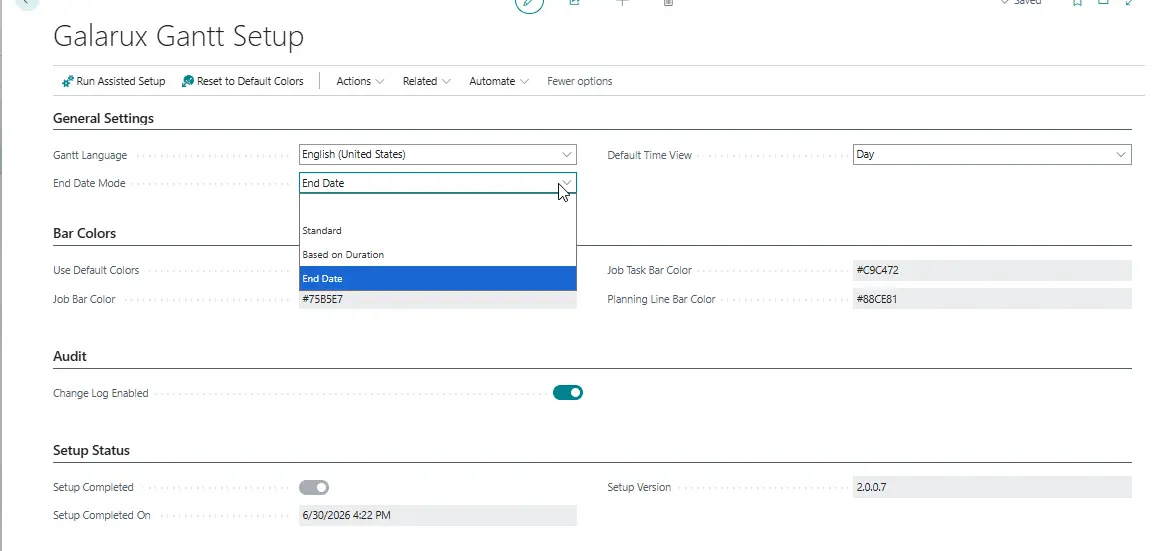
Desde la página Galarux Gantt Setup configuras el comportamiento de la extensión según tus necesidades:
- Idioma del Gantt: Inglés / Español
- Vista de tiempo por defecto: Día, Semana, Mes o Año (cada usuario puede cambiarla durante la sesión)
- Método de cálculo de fecha fin: Estándar, Basado en duración o Fecha fin, aplicado como valor por defecto a los proyectos que lo heredan
- Colores de las barras: personaliza los colores de proyecto, tarea y línea de planificación, o mantén la paleta por defecto
- Registro de cambios (auditoría): activa o desactiva el registro forense de todos los cambios hechos desde el Gantt
Configuración asistida
Puedes usar el asistente Run Assisted Setup para dejar Galarux Gantt configurado en unos pocos pasos guiados.
Visualizar diagramas
Galarux Gantt te permite visualizar los proyectos de Business Central en formato de diagrama de Gantt de forma automática. Cada tarea del proyecto se muestra como una barra en el diagrama, donde la fecha de inicio corresponde a la fecha más temprana de las líneas de planificación de la tarea y la fecha de fin a la más tardía.
Acceder al diagrama de Gantt
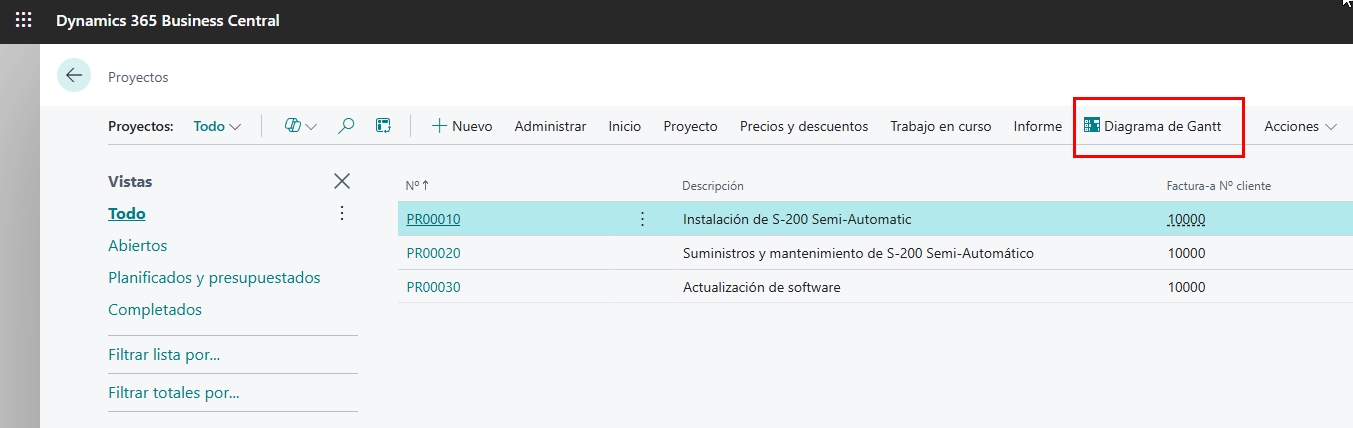
Puedes acceder al diagrama de Gantt de dos formas:
- Desde la lista de proyectos, selecciona el proyecto y haz clic en Acciones > Gantt
- Desde la tarjeta del proyecto, haz clic en Gantt
Gestionar tareas
Las tareas se generan automáticamente desde Business Central y se editan directamente sobre el diagrama. Cada cambio se guarda al instante en Business Central, que sigue siendo la fuente de verdad.
Funciones de edición disponibles
- Edición visual arrastrando elementos en el diagrama
- Modificar fechas directamente en la vista Gantt
- Crear y editar dependencias entre tareas
- Asignación y reasignación de recursos
Gestión de recursos
- Asignación visual de recursos a las tareas
- Vista de carga de trabajo por recurso o por grupo de recursos
- Panel de recursos como carga numérica (horas planificadas y disponibles) o como histograma con línea de capacidad
- Reasignación de recursos entre proyectos mediante arrastre
- Cada cambio se refleja de inmediato en Business Central
Auditoría de cambios
Galarux Gantt registra de forma forense cada cambio que se realiza desde el diagrama. Puedes reproducir cualquier guardado y saber qué se modificó, cuándo y por quién.
- Snapshots: Cada lote de guardado queda registrado como una instantánea reproducible.
- Registro de cambios: Consulta el detalle de cada cambio (tarea, fecha, dependencia) en la página de auditoría de Galarux Gantt.
- Control: La auditoría se puede activar o desactivar desde la configuración según tus necesidades de almacenamiento o cumplimiento.
Soporte
Esta sección aborda los problemas más comunes que pueden surgir al usar Galarux Gantt.
Problemas comunes
1. El diagrama no carga
Solución:
- Verifica que tienes permisos para acceder a Galarux Gantt
- Limpia la caché del navegador
- Reinicia la sesión de Business Central
- Contacta con soporte técnico si persiste
Contactar con soporte técnico
Si los problemas persisten, contacta con nuestro equipo de soporte:
- Email: soporte@galarux.com